What is the cheapest way to back up both my phone and laptop?
The cheapest way to back up both your phone and laptop is to use a combination of free cloud storage services (like Google Drive, OneDrive, or iCloud) for essential files, and a local external hard drive or USB drive for full device backups. This method leverages free storage plans offered by major cloud providers, while one-time investment in external storage ensures you have a complete copy of your data.
What are the most cost-effective phone and laptop backup methods?
When looking for affordable backup solutions, many people ask:
– What free or cheap ways are there to back up my devices?
– How can I back up my phone and laptop without paying for monthly subscriptions?
– Is there a way to use one solution for both devices?
Let’s break down the options and best practices for budget-friendly backups.
—
What does “cheap” mean in the context of device backups?
A cheap backup is a data protection strategy that results in little to no recurring costs, using free-tier or low-cost hardware and software to create copies of important data.
In most cases, the goal is to invest minimally while not compromising the safety of your files. This often involves blending free cloud storage and affordable local (physical) storage options.
What are the best free cloud storage services for backup?
For both phones and laptops, several reputable entities offer free cloud storage plans:
| Service | Free Storage Limit | Compatible Devices | Key Features |
|---|---|---|---|
| Google Drive | 15 GB | Android, iOS, Windows, macOS | Integrated with Google Photos and Docs |
| Microsoft OneDrive | 5 GB | Windows, macOS, iOS, Android | Integration with Office Suite |
| Apple iCloud | 5 GB | iOS, macOS, Windows | Seamless for Apple devices |
| Dropbox | 2 GB | Windows, macOS, iOS, Android | Easy file sharing |
Note: Free storage limits and features can change over time—always check the provider’s website for the latest details.
How do these services work for backup?
– Google Drive & Photos stores photos, videos, and files across all your devices.
– OneDrive is built into Windows, easily syncing Documents and Pictures.
– iCloud automatically backs up iOS device settings, photos, and app data.
– Dropbox allows manual file uploads and folder syncs across devices.
Can I use these services for both phone and laptop backups?
Yes, you can!
These cloud platforms have mobile apps and desktop clients, so you can upload, sync, and restore files from both your phone and laptop using the same account.
Pro tip: Organize your backups by device and date to avoid confusion.
—
How can I use an external hard drive or USB stick for backups?
External storage provides a reliable and affordable way to back up large amounts of data with a one-time purchase.
Steps to Back Up Using Physical Storage
1. Purchase an external hard drive or USB stick (at least 128GB recommended).
2. Connect it to your laptop and copy important files manually or use built-in backup tools (e.g., Windows Backup or macOS Time Machine).
3. For your phone:
– Android: Transfer photos and files to your laptop via USB, then copy them to the drive.
– iPhone: Use iTunes (Windows) or Finder (macOS Catalina and newer) to create a full phone backup, then copy backup files to the drive.
4. Store the hard drive or USB stick in a safe place, separate from your laptop.
—
What is the step-by-step process to back up both devices affordably?
Quick Guide: Cheapest Backup Steps
1. Choose your free cloud service(s):
– Sign up for Google, Microsoft, or Apple with your existing email.
2. Sync essential data:
– On your laptop: Use sync folders or apps to upload Documents, Photos, and key folders.
– On your phone:
– Enable Google Photos or iCloud Photos (depending on device).
– Use OneDrive or Dropbox mobile apps to back up selected folders.
3. Use an external drive for full backups:
– Run a complete backup or copy over all necessary files at regular intervals.
4. Maintain your backup routine:
– Schedule monthly or weekly local backups.
– Regularly check your cloud storage space and clean up unnecessary files.
What are the pros and cons of free vs. paid backup solutions?
| Aspect | Free Solutions | Paid Solutions |
|---|---|---|
| Cost | $0 (within storage limits) | Monthly/annual fees |
| Storage Size | Limited (2-15GB) | Large (100GB+ to TBs) |
| Features | Basic backup, manual syncs | Automatic, versioning, support |
| Security | Good basic protection | More advanced options |
Note: Free storage limits and features can change over time—always check the provider’s website for the latest details.
Tip: Free backup options are great for essentials, but larger photo/video libraries or business data may eventually require paid storage.
How can I keep my backups organized and secure?
– Label folders clearly by date and device.
– Encrypt sensitive files if storing locally.
– Keep at least two copies:** one in the cloud, one on external hardware.
– Test restore regularly to ensure your backups work if you need them.
What are common mistakes to avoid in cheap backup strategies?
– Relying solely on one method (e.g., only local or only cloud).
– Forgetting to update backups regularly.
– Not protecting external drives from theft or loss.
– Overlooking file selection—back up irreplaceable documents and memories first.
Related Solutions: What about network storage or old devices?
If you have an old computer or a **Network Attached Storage (NAS)** device, you can repurpose it as a private backup server for your home. While this requires some setup, it’s a one-time investment and minimizes recurring costs.
FAQ: Cheapest Backup Solutions for Phone and Laptop
1. Can I back up my phone and laptop to the same external drive?
Yes, just create separate folders for each device to keep your data organized and prevent accidental overwrites.
2. Is Google Drive the best free cloud backup for all devices?
Google Drive offers one of the largest free plans (15GB) and cross-platform apps. However, iPhone users may prefer iCloud for system settings and app data.
3. How often should I back up my devices?
At a minimum, back up important files weekly. For critical work or irreplaceable photos, consider daily cloud syncs and monthly full backups.
4. What if I run out of free cloud storage space?
You can open a free account with multiple providers, organize files by importance, or move older files to local storage to free up cloud space.
5. Are backups to USB sticks safe?
USB sticks are handy but less durable than external drives. For long-term backups, use high-quality drives and store them securely.
6. Can I automate free backups?
Some apps (like Google Backup & Sync, OneDrive, or open-source tools) can schedule automatic cloud or local backups on laptops. Phones typically sync automatically when connected to Wi-Fi and charging.
7. Is it safe to use only free backup methods forever?
For essential, personal use, free methods are safe if maintained carefully. For business or large collections, upgrading to a paid service ensures more storage and support.
—
Summary: Cheapest Backup Solution for Phone and Laptop
The most affordable all-around backup strategy combines free-tier cloud services (Google Drive, OneDrive, iCloud) with a one-time-purchase external hard drive or USB stick. This hybrid approach gives you both offsite protection and a fast, complete recovery option—at minimal cost—ensuring your valuable data is always safe and easy to restore.
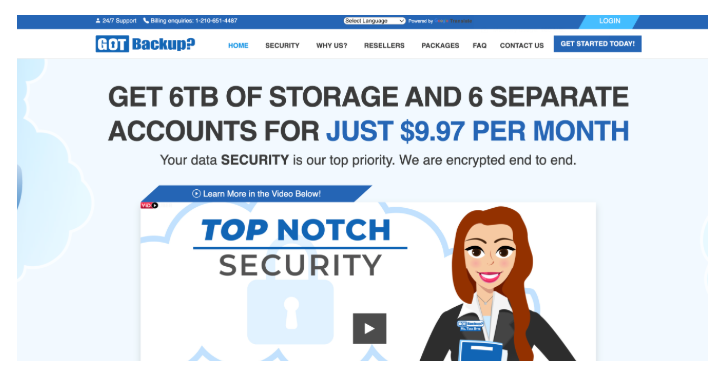
Reliable Paid Option With SIX Separate Accounts
Remember that although free solutions start off free, they can increase their prices. The GotBackup (affiliate link) app also has an optional referral plan so you can generate an income as a part-time side-hustle.